


Main Screen:
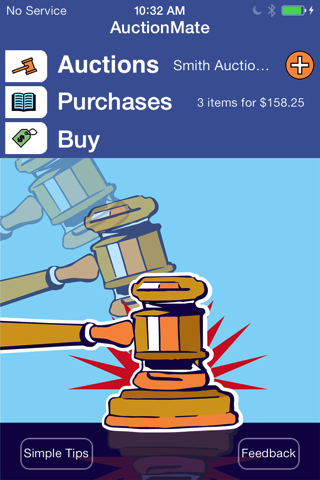
The main screen lets you choose what you want to do, create or review an auction, review your purchases for an auction, or enter purchases to an auction. Select the action you’d like to to by touching on the icon or menu item. The current screen will slide off the bottom and the new screen will slide in from the top.
If there is a current auction (an auction has been selected), the auction name will appear to the right of the Auctions menu. The Add button is used to create a new auction.
If there is a current auction, the number of items purchased and the total amount spent will be shown to the right of the Purchases menu.
Click on the Simple Tips button for a list of hints on how to use AuctionMate.
Use the Feedback button to send us your comments about AuctionMate.
Other screens will show the Home button
 . Touch it to return to the main screen.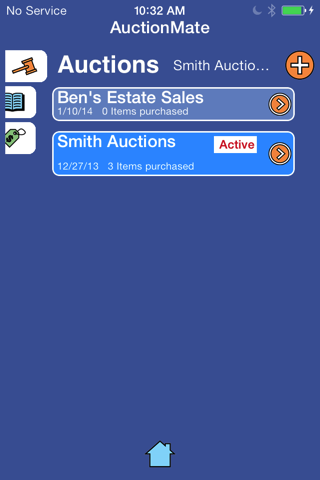
 Auctions:
The Auctions screen show a table of all the auctions you’ve created, sorted by date with the latest at the top of the list. The currently active auction name is displayed to the right of the Auction menu. Each auction will show the auction name, date of the auction, and the number of items purchases. The currently active auction will be indicated in two different ways. The cell will be larger than the others. And the background color will be a lighter blue.
Use the Add button
 to create a new auction. On the New Auction screen, only the Auctioneer name is required. Touch the Save button to create the new auction. When the Save button is selected, the auction will be made the active auction. AuctionMate will save the current GPS location when you create the auction. If you created the auction when you weren’t at the location of the auction, use the Edit Auction screen to update the location. The address of the location will be displayed on the Edit Auction screen. To access the Edit Auction screen, use the disclosure button on the auction you wish to edit.
Touch the text entry fields to bring up a keyboard to edit the entries. As you type letters an auto-completion list may appear. The list will contain all previous entered auctioneers that start with the same letters that you’ve typed. You may touch one of the entries in the auto-completion list to finish typing the description.
Use the Update Location button to use your current location as the location of the auction.
 Buy:
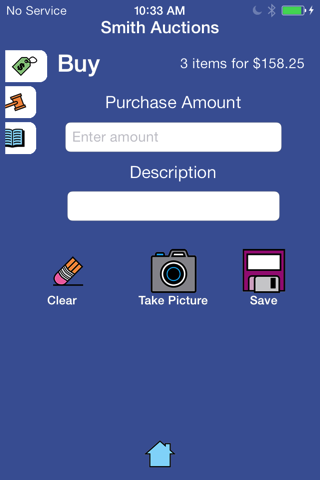
Buy:The Buy screen allows you to enter purchases. To the right of the Buy menu item is a summary of your current purchases. The purchase amount is required. Touch the text entry field to bring up a numeric keypad to entry the amount. The toolbar at the top of the keypad let’s you indicate when you are done with the entry or to cancel the entry. Touching the Next button will allow you to enter a description of the item.
Touching the Description field will bring up a keyboard to allow you to type in a description of the purchase. As you type letters an auto-completion list may appear. The list will contain all previous entered descriptions that start with the same letters that you’ve typed. You may touch one of the entries in the auto-completion list to finish typing the description.
When the Save button is pressed, the purchase will be saved in the database. The Clear button will delete the text from the Purchase Amount and Description fields. The Buy screen will remain active until another menu icon is selected or the Home button touched.
 Purchases:
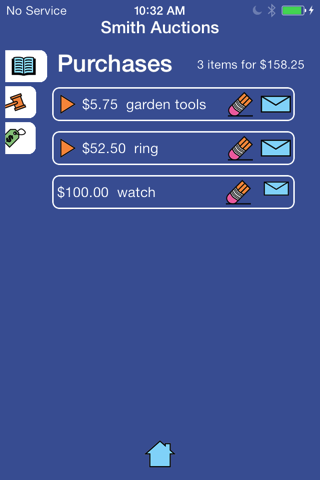
The Purchases screen will list all the purchases for the current auction. The current auction will be shown at the top of the screen. A summary line showing the number of items and total amount of the purchases will appear to the right of the Purchases menu item. One item is listed in each cell, with the purchase amount and description (if entered). For those items where you’ve taken a picture a disclosure triangle will appear to the left of the amount. Touching the triangle will show or hide the photo. Touching the Edit icon
 will bring up a screen that will allow you to edit the amount and description. You can also take a picture of the item. Use the Save button to record the changes or the Cancel button to go back to the Purchases screen without making changes.
Graphics design by Ben Schuh