


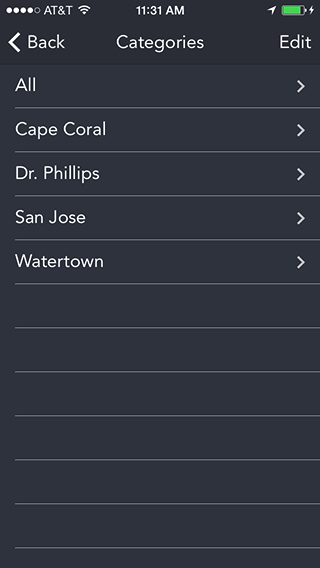
All memos can be organized into categories. You can add, delete, and rename categories. There is one special category called "All". Every memo will show in the All category. A memo can be placed into one other category.
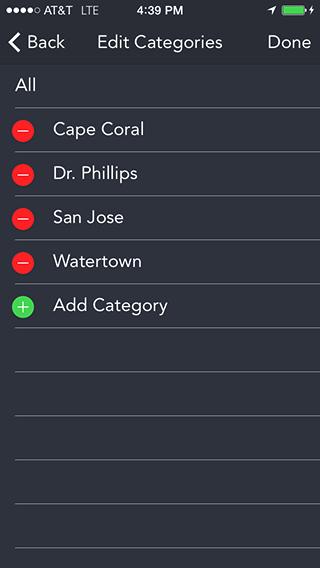
Touch the icon to add,delete, or rename a category.

Each memo in the list has a button on the left that will play or show the memo. For audio and note memos, the icon is the same icon used on the main screen. For video and image memos, the icon is a thumbnail of the image or first frame of the video. The large text is the title of the memo (set in the Memo Detail screen). The initial value for the title is the next reminder time of the memo. The memos are sorted by next reminder time. You can attach a text note to any memo. If you've done this, then the first portion of the note will be displayed underneath the title. To access the details of the memo, touch on the disclosure button. Among other items, you will be able to set the title and category of the memo.
To delete a memo you can use the swipe gesture on an individual memo or use the Edit button to delete multiple memos. Once a memo is deleted there is no way to recover the memo. If you want to stop a repeating memo and keep the memo, then change the memo to a non-repeating memo.
The bottom toolbar allows you to add or modify a note and email the memo. Before touching one of these buttons, highlight the memo you want to add the note to. Touch the note button. A text entry field keyboard will be displayed to allow you to enter a note. If a note already exists for the memo, then the current note will be placed in the text area. If the memo is a note type, then the note itself will be displayed and you will be able to edit it.. Touch the email button when you want to email a memo. For audio, video, and image memos, the memo file will be set as an attachment to the file. If a note exists, it will appear as the body of the email. For note memos, the note will appear as the body of the email. Select the people you wish to receive the email and hit send.
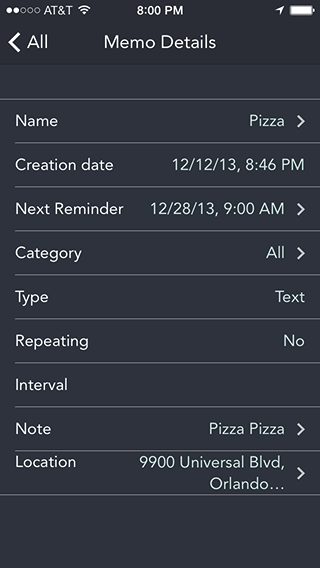
By adding a Name for the memo, this name will appear in the Memo List in place of the next reminder time. Touching the Next Reminder disclosure will bring up the same Reminder Date/Time used when you create a memo. Modifying the Next Reminder time will remove the current alarm and replace it with the new alarm time and repeat interval.
Touching the disclosure button on the Location item will display a map of the location. This item will be blank if the Location Services setting is turned off.